← Lokate Help · Logs
Build the log,
then just fill it in
Lokate records each session against a form you design yourself — the questions you care about, in your words. Build it once, share it with your unit, and after every session it is a few taps to fill in.
- Every session is logged against a form template you build — a set of questions, your wording.
- Build forms in Settings › Forms & Lists › Form Template Builder, or online on a Mac or PC.
- A form is plain, shareable text, so a whole unit can log the same way.
- Logs are saved as JSON. You can correct one later, but editing a record you have signed off is legally discouraged.
- Lokate for iPhone and for Android both log the same way.
A form you design
Lokate records your training and mission logs against a form template. A template is just a list of questions — the ones that matter to you and your dog. Many handlers keep a single template; more than one dog, or more than one discipline, is fully supported — a template for each.
Templates can be exported and imported, so a unit can harmonise on one form. The file is JSON: human-readable text, though you never need to deal with it directly.
A captured log is JSON too. You can revise one later if you made a mistake — though from a legal point of view that is strongly discouraged. Logs you have already captured stay visible and editable, but they are not upgraded to later versions of the template.
Building a form
Add a form
Tap +. An entry titled new form appears. Press and hold it to rename.
Open it
Tap the right arrow to expand it. An empty field list shows.
Add fields
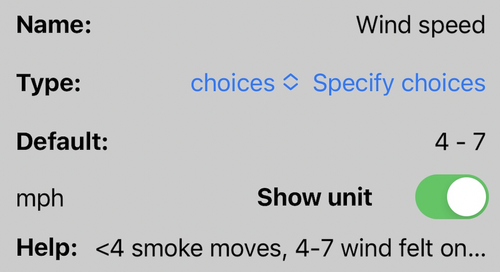
Tap + to add a Form Field, then set it up. Each field has these parts:
| Element | What it is |
|---|---|
| Name | The question you want answered |
| Type | The kind of answer (see below) |
| Default | An optional starting value, or an AutoValue |
| Show unit | An optional unit, like ft or km/h |
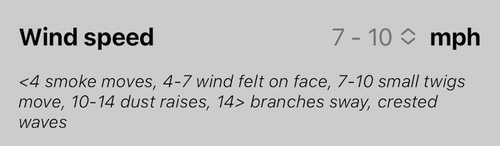
| Help | Optional hint text, shown while you log |
The Type decides what kind of answer the field takes:
| Type | Answer |
|---|---|
string | One line of text |
stringMultiline | A text area, for the story of a session |
choices | Pick from a set you define |
yesno | A yes / no toggle |
number | A number |
date | A date |
time | A time |
Put them in order
Press and hold the middle of a field to drag it up or down. Or tap Edit (top right) and use the three lines to reorder, or the red minus to delete.
Use choices and yesno for anything you will want to count later — the result, the problems, the surface. Typed answers are hard to count because the same thing gets written a different way each time. See Reports & Journal for why that matters.
Build it on a bigger screen
Forms are sometimes easier to put together on a Mac or PC. The Configuration Builder is a free online tool for reviewing and generating form templates, which you then import into Lokate.
Filling in a log
Once you have saved an assignment, open it from the Assignments list. The Log button is at the bottom of the assignment. Tap it, pick a template, and the form opens for you to fill in.
A few keyboard habits worth knowing: fields with a list of choices don’t open the keyboard. On a text or number field, Return dismisses the keyboard. On a multi-line field, press Return twice.
Share a form with your unit
Go to Settings › Forms & Lists › Form Template Builder, select the template, and tap Share. The Apple share sheet opens — save it as a file or send it as a message.
Open the form text shared with you (a message or email) and copy it. In Form Template Builder, tap the import button, paste, and tap OK. Use it straight away, or edit it first.